How-To Guides · Tech help
How to Clear Cache and Cookies in Chrome (Fix Slow or Broken Websites)
Is a website acting strange, not loading right, or showing old information? Clearing Chrome's cache and cookies fixes a lot of those problems. Here's how, in under a minute.
1. What Are Cache And Cookies?
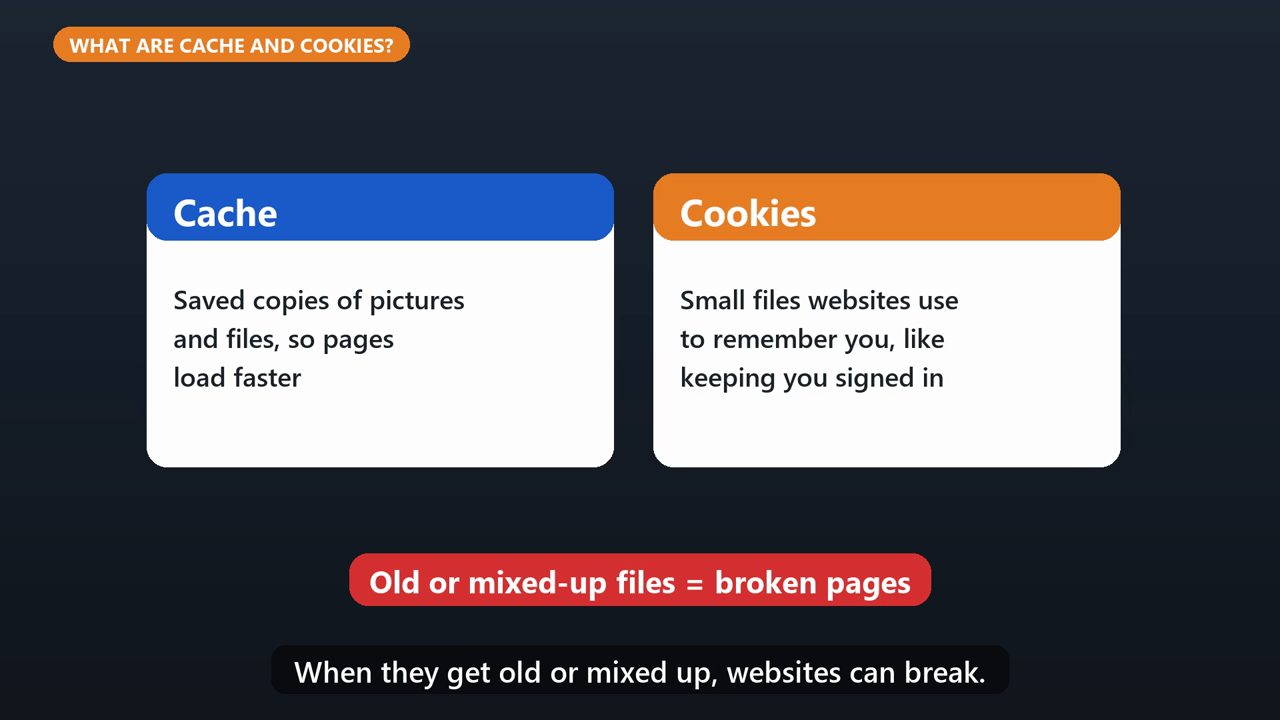
Quick explanation. The cache is copies of pictures and files Chrome saves, so pages load faster next time. Cookies are small files that websites use to remember you, like keeping you signed in. When they get old or mixed up, websites can break.
2. Step 1: Open The Delete Window

Step one. Press the Control, Shift, and Delete keys at the same time. Or click the three dots at the top right of Chrome, and choose Delete browsing data. This window opens.
3. Step 2: Pick A Time Range
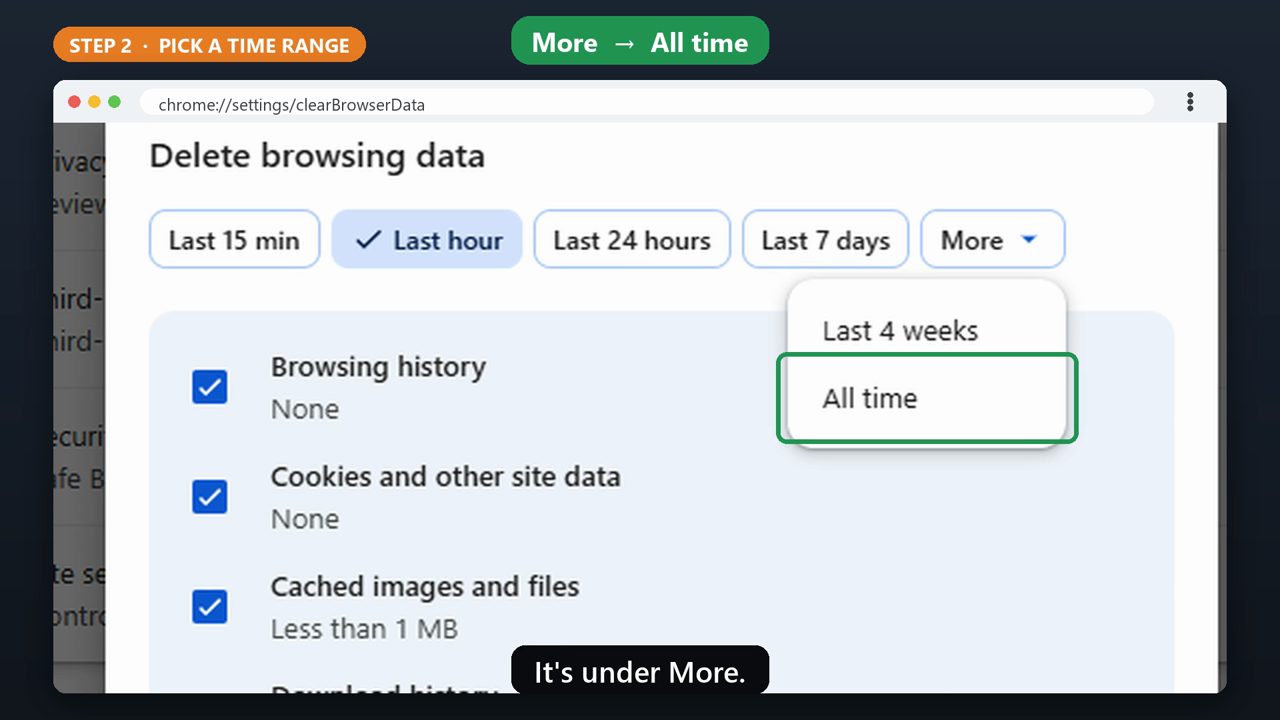
Step two. Pick a time range at the top. To fix a website that's acting up, choose All time. It's under More.
4. Step 3: Choose What To Delete

Step three. Make sure Cookies and other site data, and Cached images and files are checked. If you want to keep your browsing history and download list, you can uncheck those.
5. Step 4: Delete
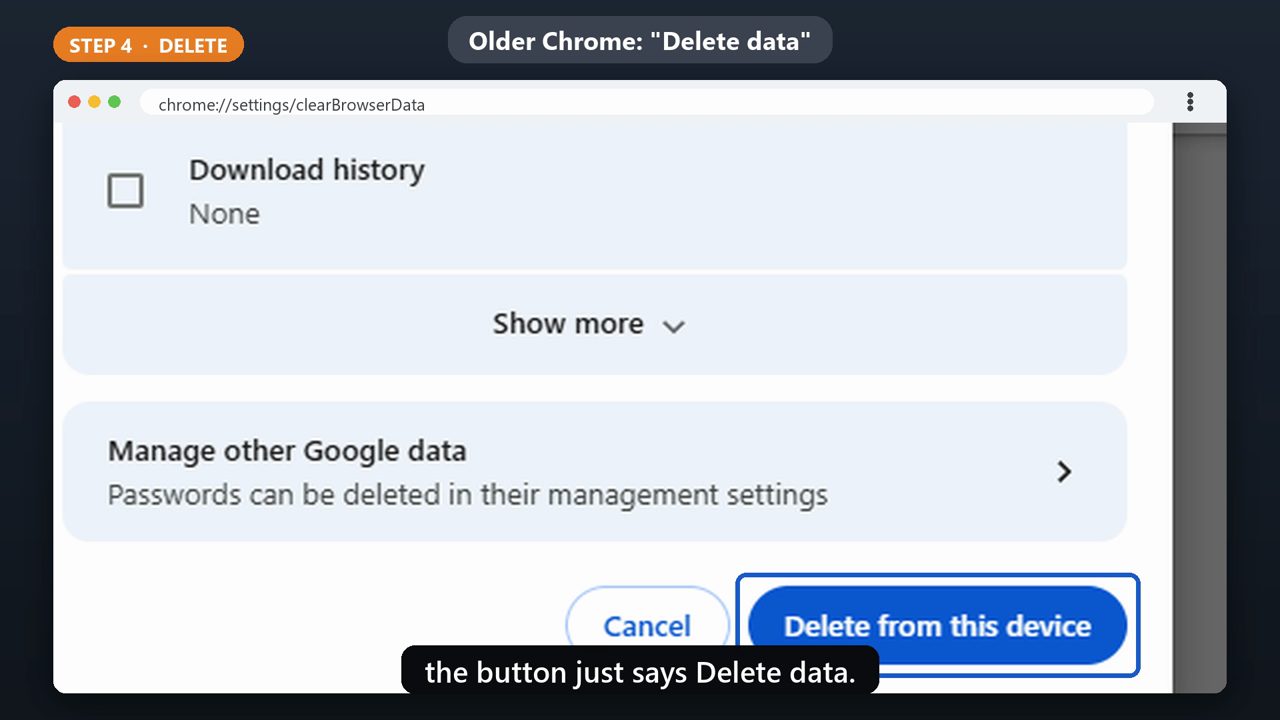
Step four. Click Delete from this device. On some versions of Chrome, the button just says Delete data.
6. Good To Know
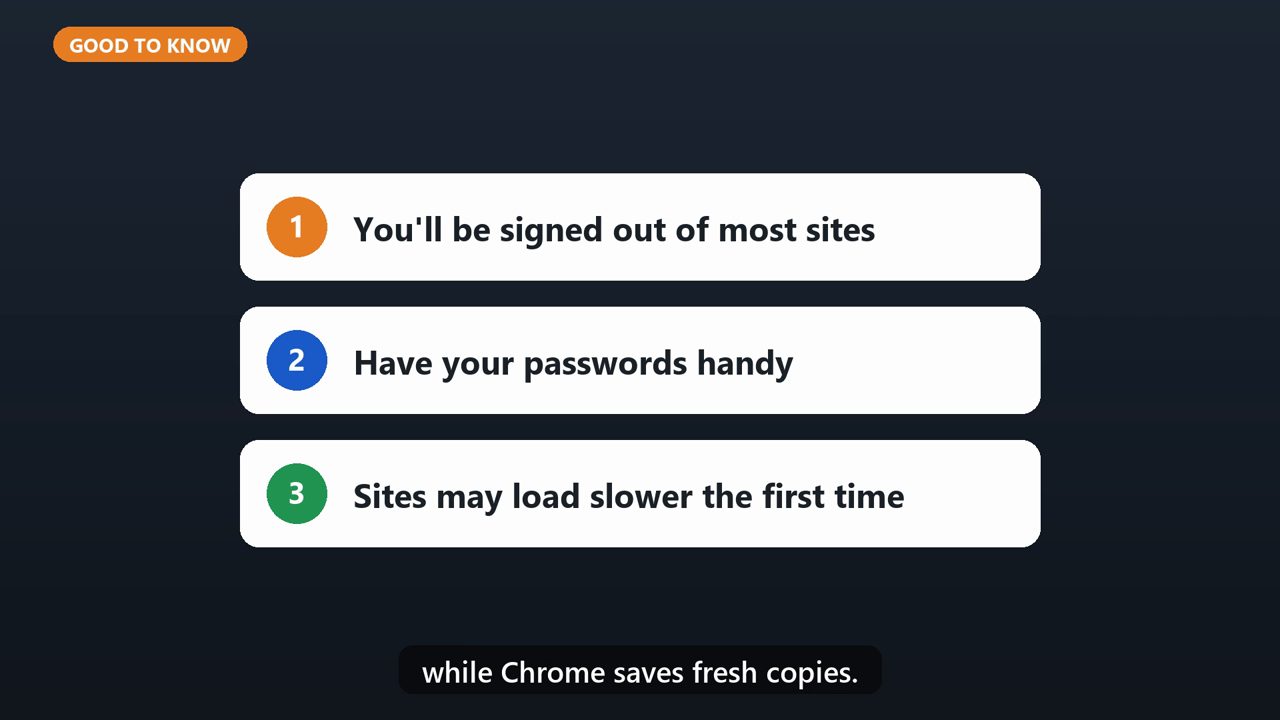
Heads up. Clearing cookies signs you out of most websites, so have your passwords handy. And some sites may load a little slower the first time, while Chrome saves fresh copies.
Tools that make this easier
Simple Google Sheets + Excel tools from WiscHaven. Buy once, no subscription.


Sources
Checked against the official sources above. Steps can change as apps update - tell us if something looks different: wischavenindustries@gmail.com