How-To Guides · Tech help
How to Take a Screenshot on Windows (3 Easy Ways)
Need to show someone what's on your screen? Taking a screenshot on Windows is just a couple of keys. Here are the three easiest ways, and where your picture ends up.
1. Way 1: Windows + Shift + S
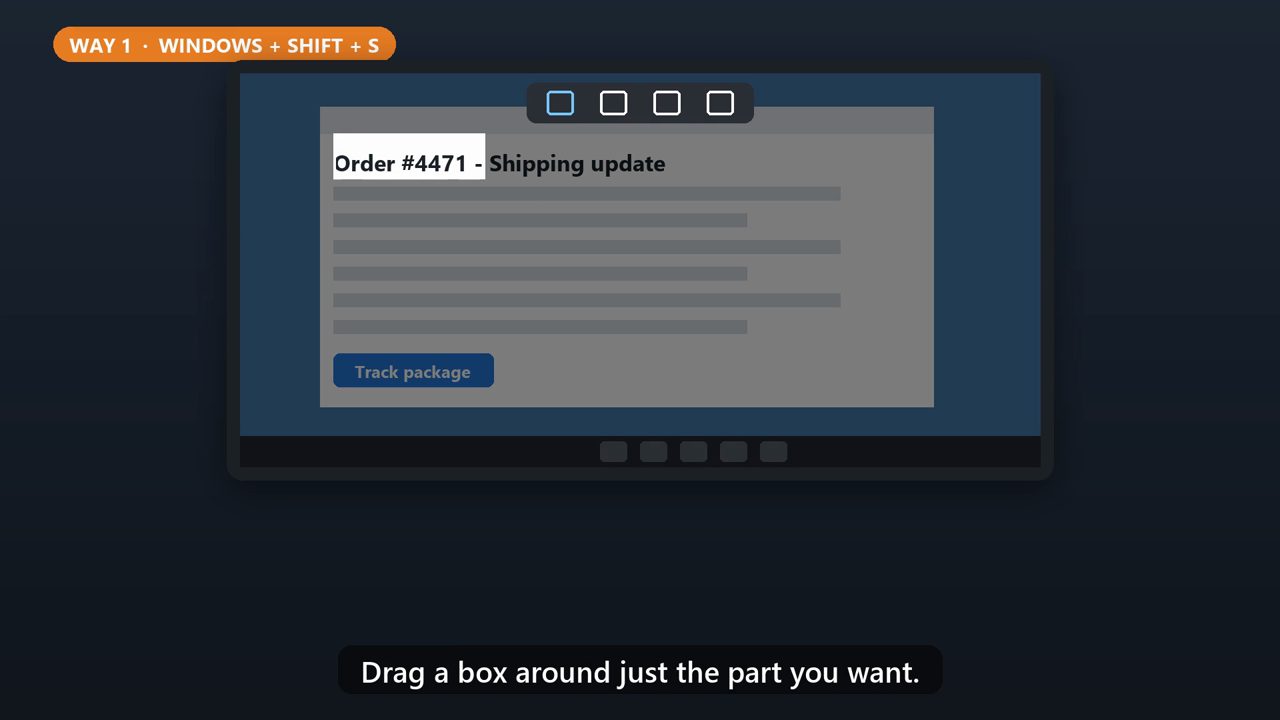
The most useful one. Hold the Windows key and Shift, then press S. The screen dims, and a small toolbar appears at the top. Drag a box around just the part you want.
2. Then Paste It
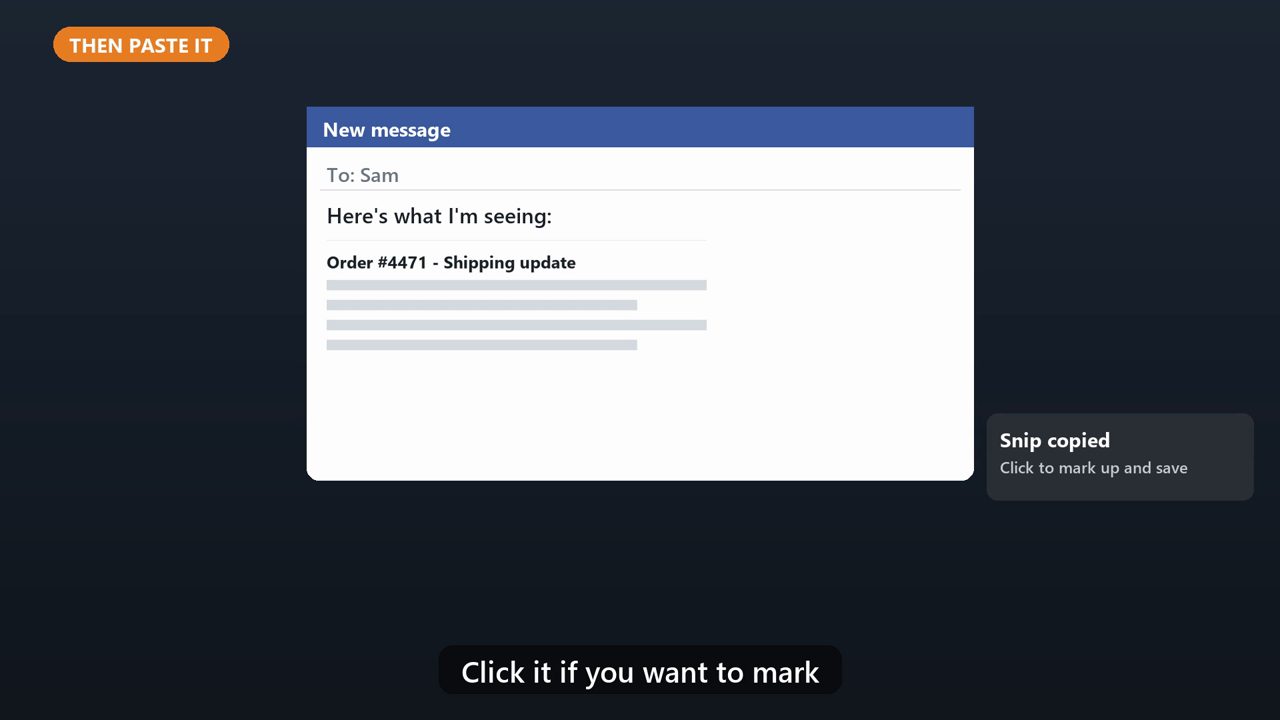
Your snip is copied, ready to paste. Click into an email, a chat, or a document, and press Control and V. A little notice also pops up in the corner. Click it if you want to mark up or save the picture.
3. Way 2: Windows + Print Screen
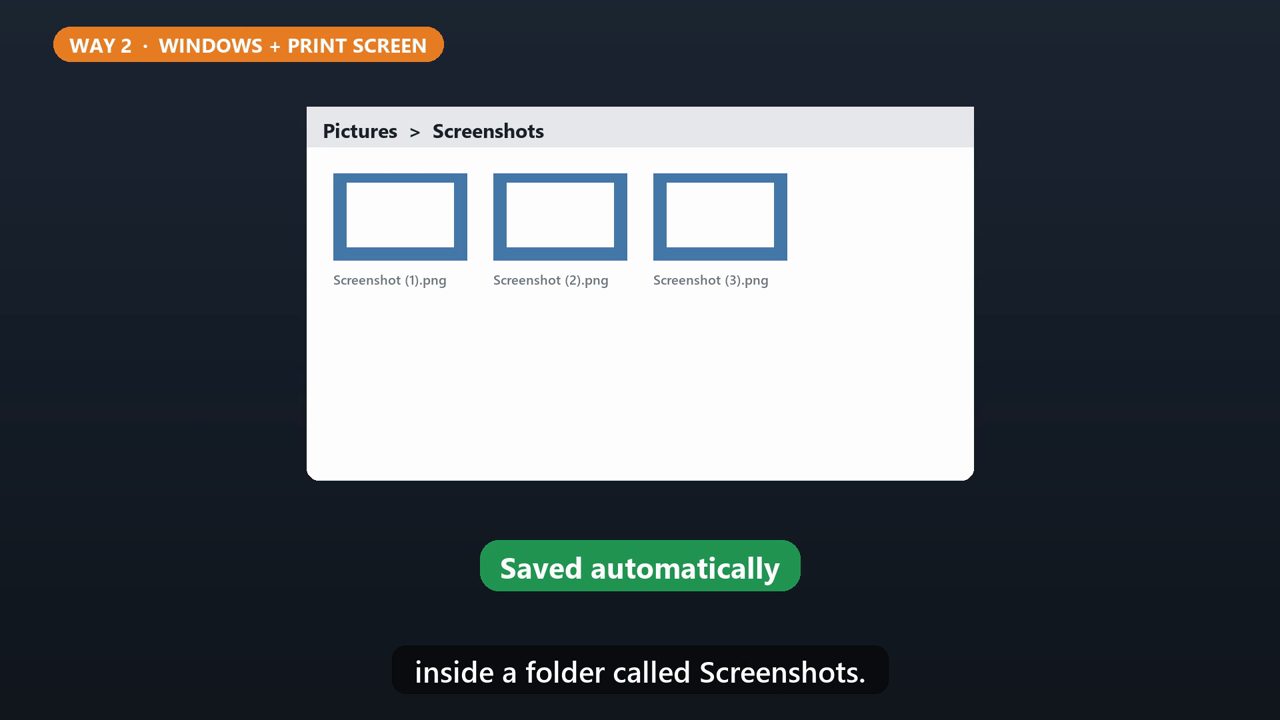
Want the whole screen saved as a file? Press the Windows key and the Print Screen key together. The screen flashes for a second. The picture saves automatically, in your Pictures folder, inside a folder called Screenshots.
4. Way 3: Print Screen By Itself
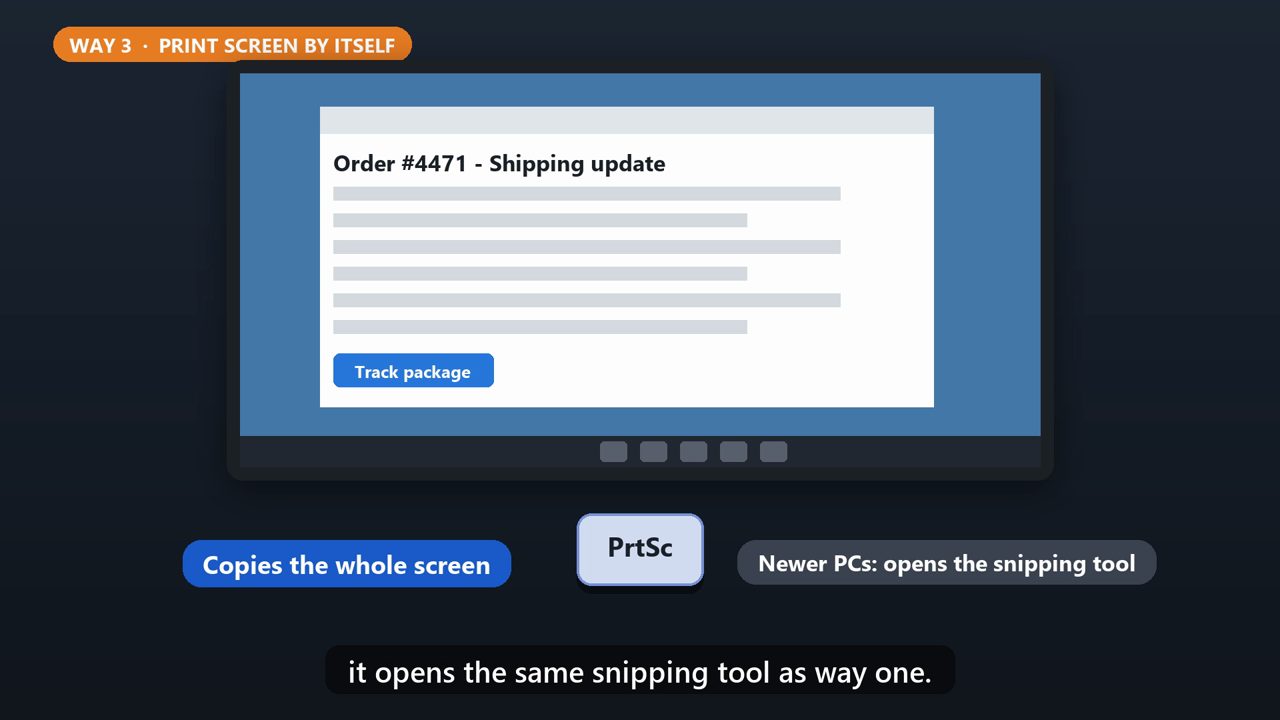
Pressing Print Screen by itself copies the whole screen, so you can paste it anywhere with Control and V. On many newer Windows eleven computers, it opens the same snipping tool as way one.
5. Can'T Find The Key?
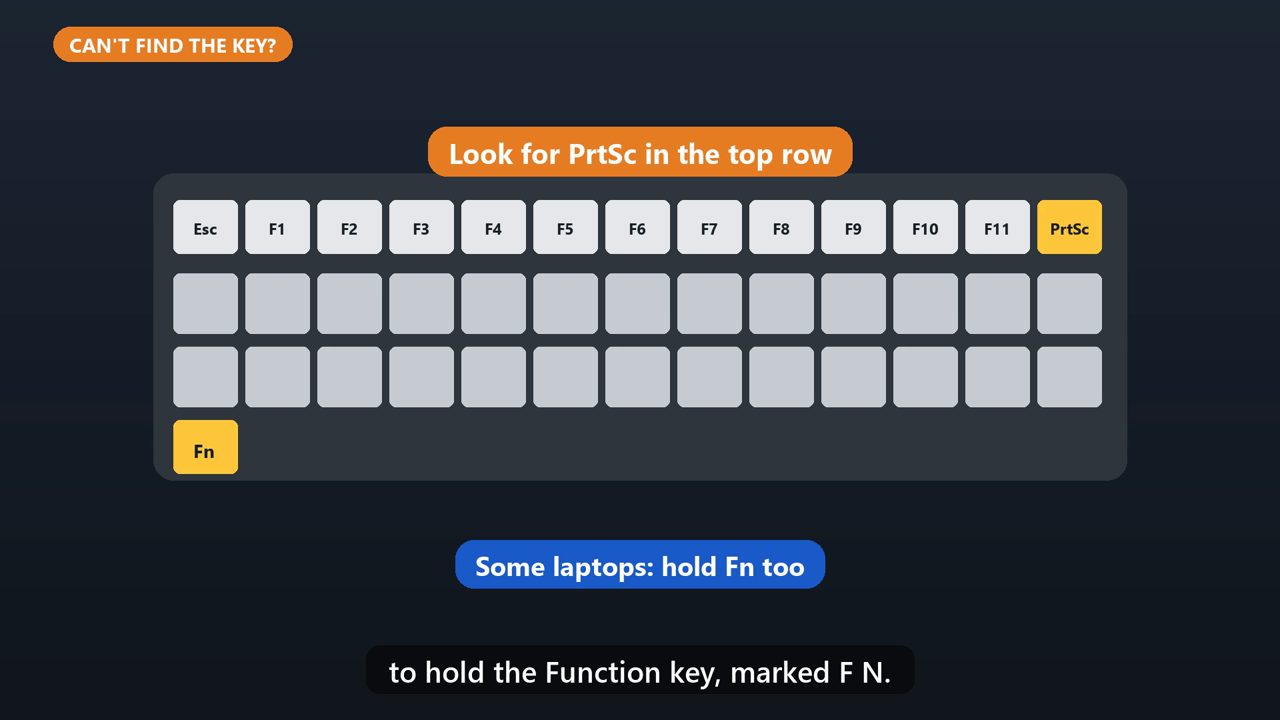
On laptops, the Print Screen key is often labeled P R T S C, up in the top row. Some laptops also need you to hold the Function key, marked F N.
Tools that make this easier
Simple Google Sheets + Excel tools from WiscHaven. Buy once, no subscription.




Sources
Checked against the official sources above. Steps can change as apps update - tell us if something looks different: wischavenindustries@gmail.com